Tag Archives: PowerCLI

HA and DRS Audit

Duncan Epping and Frank Denneman are two of the biggest rockstars in the VMware Community, recently they wrote a fantastic book on HA and DRS, this can be downloaded for a fantastic price from here, if you dont have it then you are not a VMware admin !

But wouldn’t it be great if we could have our own little Duncan or Frank to carry around in our pocket and check our clusters out for HA and DRS issues and best practices – Well now you can – no I haven’t created bobble headed characters, instead I have created…..

The HA and DRS Audit Script

Continue reading →

Enable / Disable VAAI with PowerCLI

If you don’t know what “vStorage APIs for Array Intergration” (VAAI ) is already then I suggest you look it up or at least talk to your storage vendor or VMware about VAAI as this is a great feature added by VMware in vSphere 4.1.

This basically offloads some of the features back to your storage array enabling your vSphere hosts to have more resources and time put aside for what there primary purpose in life is…. “Hosting VMs” and lets face it, the storage array is going to know how to do storage type functions more efficiently than the hosts.  I would suggest reading this post from “Virtual Geek” to get a better understanding of these 3 features which are part of VAAI.

In order to test this we recently needed a way to enable and disable VAAI, this is an easy task on a host, each of the three features have a setting in the “Advanced Settings” configuration tab of the host, these are:

DataMover.HardwareAcceleratedMove
DataMover.HardwareAcceleratedInit
VMFS3.HardwareAcceleratedLocking

These are set to 1 by default which means they are enabled, to disable them simply set them to 0.

So with a simple piece of PowerCLI we can easily see their current configuration status:

Get-VMHost MyESXHost | Get-VMHostAdvancedConfiguration -Name DataMover*, VMFS3.HardwareAcc*

We can also easily disable these features for our host:
Continue reading →

Using the EMC Cmdlets with PowerCLI

As you know from my previous post “EMC PowerShell Cmdlets – Where to start” I have started looking at the EMC PowerShell cmdlets, one thing I was keen to use them for was to find information on my VMware Datastores.

This information is already available if you have the EMC VSI Plugin installed as GUI based information but I wanted to be able to script against this info, pull various bits of information that I needed and output it into a Spread sheet.

Unfortunately the cmdlets as they stand do not allow you to take a VMware datastore and get the underlying LUN information straight out but what they do allow, with a bit of messing around, is the ability to link the information and pull back what we need, with a little work during my lunch break I managed to create a function to allow us to match the datastore objects with the EMC Lun information.

Wouldn’t it be cool if we had a single cmdlet or function we could pipe Get-Datastore or Get-SCSILun information straight into to retrieve the EMC Lun information  – well now we can !

Continue reading →

Change VM Video Memory

I was contacted by a colleague asking if there was an easy way to set the video memory for a number of virtual machines, he had been working with a customer who had received an error when a virtual machine was being Vmotioned, the Vmotion completes successfully but the following error is received:

Insufficient video RAM. The maximum resolution of the virtual machine will be limited to 1176×885 at 16 bits per pixel. To use the configured maximum resolution of 2360×1770 at 16 bits per pixel, increase the amount of video RAM allocated to this virtual machine by setting svga.vramSize=”16708800″ in the virtual machine’s configuration file.

After applying his best Google-Fu he managed to find the following KB article: http://kb.vmware.com/kb/1014593

This clearly tells him the issue and how to resolve this by changing the video memory on the virtual machine, however, after changing this setting he then came across another issue as SRM was unable to protect these virtual machines as described in this KB article: http://kb.vmware.com/kb/1020796

The long and the short of it was that he needed to change the video memory in over 3000 VMs, you can of course do this in the vCenter client using the following screen but for 3000 VMs this may take a while ! Continue reading →

PowerCLI Book Preview

If you follow any of my co-authors blogs you will know that our PowerCLI book “Vmware vSphere PowerCLI Reference” is due out imminently, around the end of this month, you of course do not have to wait this long, you can already pre-order the book from any of the sites listed below:

We also started a website which you can keep up to date and download the latest examples from the book or ask questions about scripts in the book, visit it here: PowerCLIBook.com

But what I thought might be nice is a little taster so you know what to find in the book.

Recently when attending the Dutch VMUG, Luc and I gave a presentation, in this presentation we showed more about the book and what to find in it, we even gave some nice video examples of the scripts which you can find in the book, please see below for the slide deck and the videos from our presentation… Continue reading →

Interview with Dimitar Hristov – VMware vSphere PowerCLI Engineering Team

I think I must have missed this interview when I was at VMworld Copenhagen but recently came across this and gave it a quick listen.

John Troyer does a great job interviewing Dimitar Hristov from the PowerCLI engineering team, there is some great information in here to do with getting started and the future of PowerCLI, definitely worth a watch. Continue reading →

PowerCLI Freebies

One question I have been asked more and more recently is how can people get hold of the PowerCLI Poster if they didn’t attend VMworld or one of the VMUGs where VMware and I have been giving them away.

There is of course the PDF version which can be found here but what if you are not fortunate to have a poster sized printer to get this printed at a good size to fill that hole on your wall ?

Its your lucky day !  VMware are now printing and posting these to you FREE OF CHARGE, they have put together a “PowerCLI FAN PACK” which contains the following: Continue reading →

Backing up the ESXi System Image

ESXi is based on a system image, VMware used to call this a firmware but some people found this misleading, most people still refer to it as firmware but in this post I will refer to it as a system image.

The system image is a unified image which is the same whether booting from USB, Hard Disk, PXE or any other media. The logic in the first boot will provide auto configuration based on the kind of installation you have.

One thing to remember about ESXi is that it is memory based, so once booted the system image is entirely loaded into memory, ESXi doesn’t care if the original media disappears after boot, there is no reliance on the boot device for running after booting.

ESXi is essentially made up from a number of tardisks (VM TAR files) or archives, these tardisks are mounted into the empty root filesystem in order of enumeration, one of these is called the state tardisk or state.tgz.

The state tardisk is made up of any file in /etc which is marked as sticky, VMware uses the sticky bit to flag the files which are to be included as part of this tardisk but only if they reside under /etc, these are files like esx.conf, inetd.con, passwd….  These are the files which will be persisted after boot.

Continue reading →

PowerCLI 4.1.1 Poster

Recently VMware updated PowerCLI to version 4.1.1, this includes some cool updates including several new cmdlets and a few fixes behind the scenes to make things run faster and fix type names.

With the new version now comes a new poster, many of you will have already seen the PowerCLI Poster, I know thousands have already been given out at VMworld USA, VMworld Europe and also a limited edition version at the Dutch VMUG.  VMware have done a great job updating this and also asking some of the top users of PowerCLI what should also be included or changed.

If you were unlucky enough not to have one of these above your desk on the wall at the moment then it will only be a matter of time, VMware will soon be hopefully giving you the chance to get one of these posters by ordering them online, I am not sure of the details as yet or how much these will cost (if anything) but will keep you updated as I know more.

For now if you want to check out the latest and greatest poster then please click the image below to download the PDF version or click here to find out the history of this poster and how it has become the masterpiece that it is. Continue reading →

Automated support bundles

I received an email recently from a gentleman asking if it was possible to export the support bundles for each host on a daily basis, this can be useful for not only having an archive of your system logs to help resolve problems and work out when they started but also useful for auditing purposes.

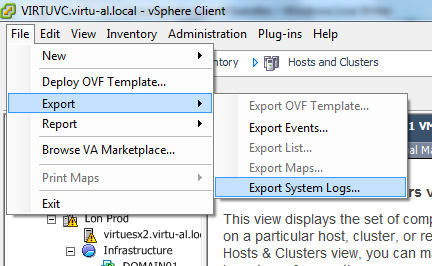
At the moment he was doing this manually every day by using the virtual infrastructure client as can be seen below – you can imagine how long this was taking !

Exporting the logs from the vCenter Client

image

1.  Select the File menu and then Export, Export System Logs…

SNAGHTML3030b74

2.  Select the hosts which you want to download the system logs for and click OK

Continue reading →