Tag Archives: VMware

vCheck (Daily Report) V3

Initially when I started this script I wanted people to be clear that this was a report that was going to give you a daily summary of any issues which may exist in your Virtual Infrastructure, from the beta testing I did to a select few it was clear that they were expecting this to send them a full inventory of their infrastructure.

That wasn’t the point in this script and I think people now have the idea that this is more of an issue log than an audit script so I will now revert to my original name of…. vCheck.

The key thing to remember is that if an issue does not exist in a particular area then it will not show in the output, when and if issues turn up they will start appearing in the output almost like magic !

I want to thank everyone who is using this script and those who have left a comment, even if its just to say how much you like it !

I especially want to thank Raphaël SCHITZ (http://www.hypervisor.fr/) for all his contributions, he has added some great features to this version and helped me take it to a new level.

The previous version already reported on these areas: Continue reading →

Virtu-Al VESI & PowerGUI PowerPack

I have been teasing people on twitter for a week or so now and have just uploaded my PowerPack to the PowerGUI site, you can download it here

image

As you can see from the screen shot on the left, this is a first attempt at providing most of my scripts in one PowerPack and adding to the already great management that VESI and PowerGUI give you.

So what do I need to do to install this ?

  1. Install PowerShell V1 or V2 (if you do not already have these installed) V2 Recommended
  2. Install PowerCLI
  3. Install VESI or PowerGUI (VESI Recommended for Virtualization management)
  4. If you have PowerGUI installed you will need to add the  ‘VMware Infrastructure Management’ PowerPack which can be downloaded from here.
  5. Click the download button at the top of this post to download my latest PowerPack, and rate the PowerPack while you are there if you like !
  6. Import the PowerPack into VESI or PowerGUI

From then on you will see both the VMware set of icons and the Virtu-Al icons, you will need to connect to a VI server or number of hosts using the ‘Managed Hosts’ section of the VMware PowerPack, once connected all icons (nodes) become active in the Virtu-Al.net powerpack, simply click on one to see the results.

If you want anything added or find something that doesn’t quite work, firstly make sure you have the latest version of the PowerPack by following this post, if it still doesn’t work please let me know, I am aware of a few bugs and have yet to put any actions in there but please, use it and give me your feedback !

I hope you find this useful !

Veeam backup and Replication V4

Ok, backups, the bain of my life, I remember in a previous role we had to split this job, each of us doing a one week rota on backups as they should be the kind of thing that you run and everything is fine, but did they ever work ? No.

Anyway enough about my hate of backups and tape library’s etc, time for the cool stuff that changed my mind !

Veeam are a company of “firsts”, there is nothing Ricky El-Qasem from Veeam likes telling you more than how Veeam have done something first and to be honest I couldn’t agree more, they do always seem to have the latest of technologies in their software, the first people to use the latest features or to make things easier.

Veeam backup and replication has always been a great product and with the latest version the have done it again, there are many “firsts” in there again, mostly to do with the way the backups and restores are performed by totally slashing the time using vSphere’s new “vStorage API’s” technology. Continue reading →

PowerCLI: vSphere License Export

Seeing Luc’s recent blog post where he explains how to add a vCenter License using PowerCLI, I thought I would stick with the licensing theme and show you how to export your vSphere License keys and details to a csv file enabling you to keep them backed up in a safe place.

This script will only work with vSphere as in vSphere the license server was removed and licensing became a great deal easier, if you want the v3 version you can grab it from my previous post here.

The output can be seen below:

image

Script:

$filename="C:\LicenseInformation.csv"
$ServiceInstance=Get-View ServiceInstance
$LicenseMan=Get-View $ServiceInstance.Content.LicenseManager
$vSphereLicInfo= @()
Foreach ($Licensein$LicenseMan.Licenses){
	$Details="" |Select Name, Key, Total, Used,Information
	$Details.Name=$License.Name
	$Details.Key=$License.LicenseKey
	$Details.Total=$License.Total
	$Details.Used=$License.Used
	$Details.Information=$License.Labels |Select-expandValue
	$vSphereLicInfo+=$Details
}
$vSphereLicInfo |Select Name, Key, Total, Used,Information | Export-Csv -NoTypeInformation $filename

I have included this in my new VESI PowerPack, the version in the PowerPack will automatically work out if your VI is V3 or V4 and show the appropriate information.

image

VESI & PowerGUI PowerPack Management

I have spoken about VESI and PowerGUI a few times on the blog now so you should know all about these FREE little gems, one thing that I like about them is the way you can create your own PowerPack.

A PowerPack is basically a collection of scripts and actions and cmdlets all bundled together in shiny wrapping paper and passed back into the GUI for you to harness the power of Powershell without even realising it.

As you can see from the PowerGUI site there is a PowerPack for almost everything you would like to manage and if there isn’t one there then you could either put one together yourself or leave a message on their site planting the idea in their brains. Continue reading →

PowerCLI: Listing Cluster Primary HA Nodes

Following my recent post on Slot Sizes and pointing to Duncan’s great HA Deepdive article I came across a great script today on Hypervisor.fr, he has been creating some great PowerCLI scripts recently and also sent me some fantastic additions to my Daily Report, all of which will be added in the next version which is due out any day now.

Just to set the background I will steel a little of Duncan’s post but please make sure you read his full article and then re-read it until it is ingrained in your brain, this guy knows his stuff.  Duncan’s post reads…

A VMware HA Cluster consists of nodes, primary and secondary nodes. Primary nodes hold cluster settings and all “node states” which are synchronized between primaries. Node states hold for instance resource usage information. In case that vCenter is not available the primary nodes will have a rough estimate of the resource occupation and can take this into account when a fail-over needs to occur. Secondary nodes send their state info to the primary nodes.

Nodes send a heartbeat to each other, which is the mechanism to detect possible outages. Primary nodes send heartbeats to primary nodes only. Secondary nodes send their heartbeats to primary nodes only. Nodes send out these heartbeats every second by default. However this is a changeable value: das.failuredetectioninterval. (Advanced Settings on your HA-Cluster)

The first 5 hosts that join the VMware HA cluster are automatically selected as primary nodes.  All the others are automatically selected as secondary nodes. When you do a reconfigure for HA the primary nodes and secondary nodes are selected again, this is at random. The vCenter client does not show which host is a primary and which is not.

A question was raised on the PowerCLI communities before the days of vSphere asking if you could get the information with regards to which of the hosts were primary for each cluster, a suggestion was made by The PowerCLI master himself LucD to grab the information via a putty session and then present it back onto PowerCLI to use the data.

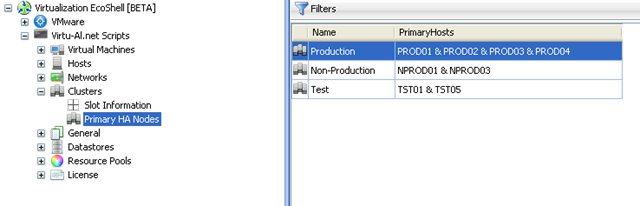
Now, with vSphere and the updated SDK it would seam that this information is available, so I have modified the script found on Hypervisor.fr to list each cluster and the primary nodes within these cluster as seen in the example below:

image

This can be achieved with a simple (well kinda) script which will check that the cluster has HA enabled and that the vCenter server is Version 4 (vSphere) and then present the results for each cluster:

If ((Get-View ServiceInstance).Content.About.Version-ge “4.0.0“){
Get-View -ViewType ClusterComputeResource |Where {$_.Configuration.DasConfig.Enabled-eq $true} | Select Name,  @{N=“PrimaryHosts“;E={[string]::join(‘ & ‘,(($_.RetrieveDasAdvancedRuntimeInfo()).DasHostInfo.PrimaryHosts))}}
}
Else{
Write “Sorry this is only available to a V4 vCenter Host“
}

Or if the perl toolkit is your cuppa tea then check out this version from William Lam (Perl Ninja)

I have also added this to a VESI PowerPack which I am in the middle of creating and will publish soon, as you can see from the below:


image

PowerCLI: Mass VM Portgroup Change

I was asked in my Script List if it was possible to change Multiple VMs to attach to a new PortGroup, this task is easy enough so long as you remember that every VM can have up to 4 virtual nics in VI3 and up to 10 in vSphere.

So to change all virtual machines we would do the following:

$OldNetwork = "PG1 192.168.0"
$NewNetwork = "PG2 10.1.1"

Get-VM |Get-NetworkAdapter |Where {$_.NetworkName -eq $OldNetwork } |Set-NetworkAdapter -NetworkName $NewNetwork -Confirm:$false

Or to change all of the VMs for a particular cluster we could use:

$Cluster = "Non-Production"
$OldNetwork = "PG1 192.168.0"
$NewNetwork = "PG2 10.1.1"

Get-Cluster $Cluster |Get-VM |Get-NetworkAdapter |Where {$_.NetworkName -eq $OldNetwork } |Set-NetworkAdapter -NetworkName $NewNetwork -Confirm:$false

Note: By default the Set-NetworkAdapter cmdlet would prompt you for each change it was going to make, this is overwritten by using the –Confirm:$false parameter.

Continue reading →

The VESI 1.2 – Get it now

People who read my blog know how much I like the Virtualisation EcoShell, I love the way it adds the power of PowerCLI back into the GUI to enable you to create customised GUI’s all of your own enhancing the true power of PowerShell and allowing people who do not know how to code in PowerCLI (yet) the chance to harness the power.

Version 1.2  of the VESI has now been released and it has some great new features:

Continue reading →

PowerCLI: Host Network Config

Whilst on a recent engagement with a customer we were looking at best practices and trying to quickly see how each PortGroup was configured, did all hosts have the same nics assigned to the same vSwitches, were all Portgroups setup the same to use the correct active and standby adapters ?

Have you ever tried doing this from the GUI ? Believe me it will take about 10 minutes to manually copy the relevant information from each host and if you have multiple PortGroups and multiple vSwitches then you can see how long this will take to check against best practice !

I think you know what is coming….

This came up again when someone asked me how to achieve exactly the same thing so I bumped it up my list of scripts I need to write.

Check out the below PowerCLI script, it lists all the needed information to perform this best practice analysis as you can see from the example output:

image

Continue reading →

PowerCLI: More HAL Information

If you have performed Physical to Virtual (P2V) Migrations before you will know about the significance of having the correct Hardware Abstraction Layer (HAL) installed within the operating system.

Without the correct HAL you may experience a speed decrease or even a hung operating system.

For a single processor VM you will need a Uniprocessor Hal and for a multi (2-8) processor VM you will need a Multiprocessor Hal.

The following one-liner expands on my previous one-liner to include the following information:

  • Name
  • Number of CPUs
  • HAL installed in the OS
  • OS Version
  • OS Service Pack Version

Continue reading →