Tag Archives: PowerCLI

Why vEcoShell or PowerGUI makes sense

A little while back I started a PowerPack which could be used in either PowerGUI or vEcoShell – the application formerly known as “The Virtualisation EcoShell or VESI, my PowerPack was a collection of the most used scripts from my site all laid out in a nice GUI format.

Now why would you put a GUI back on top of the scripting, lets think about this…

Continue reading →

Incorrectly named VMs

I was recently contacted via my blog and asked if there was a way to find the VMs which are not named in vCenter the same as they are in Active Directory or their hostname, the person contacting me had explained that someone had “accidently” renamed a number of VMs and when there was an issue with the windows VM they were unable to find it as the name of the VM did not relate to the hostname in any way.

The quick way to find the VM was easy enough, we can easily find the VM with this single one-liner:

Get-VM | Where { $_.Guest.HostName -match "HostnameOfVM"} | Select Name, @{N="Hostname";E={$_.Guest.Hostname}}

If you replace “HostnameOfVM” in the above example with the hostname you should get the correct results back showing the name and the Hostname of the VM.

With this in mind I expanded the above one-liner a little to check your vCenter for each VM which may have a VM name which is different to the hostname, now obviously this depends on if you name the VMs with the hostname or the FQDN so I added an option for both.

If you name your VM’s with the FQDN like MyVM.MyDomain.Com rather than just the hostname (MyVM) then simply set the $IncludeFQDN to $true rather than the preset $false.

As it stands at the moment, the below script will tell you about the VMs which are not named correctly and it will also tell you that it would have changed the name, that’s because this script is currently in “Whatif” mode, this mode means it will tell you if it was going to make a change and not actually make the change.  I would run the script as it was and if you are happy with the results simply remove the –whatif which is located after the Set-VM cmdlet, this will then enable the cmdlet to set the name of the VM back to the correct name.

Connect-VIServer MyvCenterSRV
# Specify if your virtual machine names include the FQDN
$IncludeFQDN = $false

Get-VM | Where { $_.PowerState -eq "PoweredOn" } | Foreach {
    If ($IncludeFQDN) {
		$Name = $_.Guest.Hostname
	} Else {
		$Name = (([string]$_.Guest.HostName).Split("."))[0]
	}
    If ($_.Name -ne $Name) {
        If ($_.Guest.Hostname) {
            Write "VM name '$($_.Name)' is not the same as the hostname $Name"
			Set-VM $_.Name -Name $Name -whatif
        } Else {
            Write "Unable to read hostname for $($_.Name) - No VMTools ?"
        }
    } 
}

A gentle reminder that whilst this may rename the VM name correctly it will obviously not touch the name of the folder on the datastore, if the name was not correct in the first place then your folder name will be incorrect which is an entirely different issue (picked up by my vCheck script), this can of course be resolved whilst the VM is powered on by performing a storage vmotion to another datastore, a SVMotion renames the folder and files to the correctly named entities.

vCheck v5

That’s right, its finally here, vCheck v5 has arrived !

If you have been using previous versions of this report then its time to update, I have added lots of cool new features and checks which make this report (even if I do say so) awesome !

Some of the highlighted features of v5 are:

Comments

Each section now has comments telling you why I think it may be an issue, there are often links to blog posts and useful information for further reading, an example is below:

image

Obviously for the experts among you these comments can easily be removed in the script by changing the $comments = $true to $false

Automatic searching for log warnings

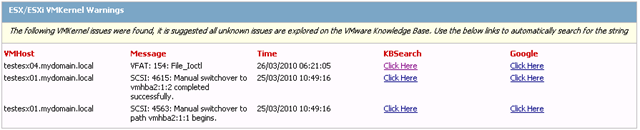
There is now a handy link to both the VMware KB site and Google which will automatically search for the errors found on these sites, no longer do you have a reason for not investigating those errors !

image

Multiple new checks

There are so many new checks that I have now created a dedicated page on my site for this script which lists some basic information, this will of course change over time as more detail is needed and I hope to shoot some video soon showing how to change some of the key areas.

To access the page click the “Featured Scripts” area above and select “vCheck (Daily Report)” or click here.

image

Thanks

I have been bugging various people to help me with this script, whether it be for information or html help, thanks to everyone who helped me out and also to the beta testers.

To mention a few of the people specifically, thanks goes to:

Raphael Schitz – As always he has contributed some great checks for v5 and thought of areas I would never have.  Amazing job my friend.

Duncan Epping – I have bothered him more than once for clarification on the way things work, cheers mate.

Andy Grant – He did a great job helping me tidy up my HTML and add new areas.

The beta testers – you know who you are !

Sorry if I missed anyone !

Dell ESXi Management

Unlike the traditional ESX software, the ESXi software does not have a service console. It helps reduce the installation footprint of the software and can allow the hypervisor to be directly installed on the system’s internal flash storage or a USB key.

At the moment I am investigating moving to ESXi from ESX, after resolving the DSET issue I was then faced with the management of the ESXi hosts, currently the full fat ESX hosts have the Dell open management agent installed on them and SNMP configured, this allows the Dell management server to keep track of the underlying hardware and report any hardware issues or firmware updates.

But what happens with ESXi 4.0 and the removal of the service console ?

Earlier with ESXi 3.5, OpenManage component were integrated with the downloadable Dell ESX3i ISO image
but from ESXi 4.0 onwards, VMware introduced a new concept called vSphere Installation Bundle (VIB), this allows the end users to download VIB files and install it directly into ESXi 4.0. Dell are now posting their OpenManage component as a VIB on support.dell.com.

To help reduce the system footprint and to simplify deployment, the ESXi software does not have a traditional service console management interface where Dell OpenManage agents are installed. Instead, to provide the required hardware manageability, VMware has incorporated the standard Common Information Model (CIM) management profiles into the ESXi software.

Continue reading →

Getting started with the Update Manager Cmdlets

Last night I needed to update some of my hosts with the latest patches that have been released recently, this gave me the ideal opportunity to look at the recently released VMware Update Manager cmdlets for PowerCLI.

For a full list of cmdlets or to download click here.

Whilst upgrading one of my hosts I shot a short video which will take you through some of the basics like:

  • Adding a baseline to a host
  • Scanning the host
  • Listing the patches which will be applied
  • Remediating a host

When watching the video don’t think about how you can do this to a single host, keep in mind that this could be run against multiple hosts or added to the end of a configuration script to ensure your hosts are up to date with the latest security patches after being deployed. Continue reading →

VMware Update Manager cmdlets

Way back beyond the time before PowerCLI was invented there was this app called the Virtual Infrastructure Toolkit, when you installed the VITK if you had Update manager installed you used to be able to install some beta cmdlets which worked with update manager, this was subsequently removed in future versions….. Until Now !

They are back from the dead and in the form of a separate download to the current PowerCLI installable.

Download and install them now !

The first thing you will need to check is what operating system you are installing these on, personally I did not check and ended up with an error when trying to install them on Windows 7 64bit so here is a list of the supported operating systems so you don’t make the same mistake: – OK I may have been using a modified version of PowerCLI – Apparently this does install on Win7 64bit, even if it isn’t in the supported list !

  • Windows Server 2008
  • Windows Vista
  • Windows XP Service Pack 2
  • Windows Server 2003 Service Pack 2

You will also need the following installed:

  • .NET 2.0 SP1
  • Windows PowerShell 1.0 or higher
  • VMware vSphere PowerCLI 4.0 Update 1

After installing, from the PowerCLI prompt we can see a list of the new cmdlets by using the Get-Command cmdlet as below:

Get-Command -PSSnapin VMware.VumAutomation

image

So we can see we have an extra 13 cmdlets, what do these do, well they do all the “Update Manager” type tasks you would expect to do, so now as well as deploying our hosts we can also make sure they are patched to the latest version before adding them into our cluster, all automated of course !

Continue reading →

PowerCLI: Technical Support Mode

Today Duncan over at yellow-bricks.com has started quite the conversation on technical support mode for ESXi or otherwise known as “unsupported mode”, check out his blog post and especially the comments here:  http://www.yellow-bricks.com/2010/03/01/disable-tech-support-on-esxi/

As always when I see a post my first thought is to PowerCLI, so how can it help in this instance, well apart from the obvious cmdlets which I mentioned in my earlier ESXi post, there are also a couple of one liners which can help us manage Technical Support mode.

To view all hosts and check to see if they have Technical Support mode enabled, use the following:

Get-VMHost | Where {$_.State -eq "Connected" -or $_.State -eq "Maintenance"} | Get-View | Where {$_.Summary.Config.Product.Name -match "i"} | Select Name, @{N="TechSuportModeEnabled";E={(Get-VMHost $_.Name | Get-VMHostAdvancedConfiguration -Name VMkernel.Boot.techSupportMode).Values}} | Out-GridView

image

To disable it on all ESXi hosts use the following:

Get-VMHost | Where {$_.State -eq "Connected" -or $_.State -eq "Maintenance"} | Get-View | Where {$_.Summary.Config.Product.Name -match "i"} | Get-VIObjectByVIView | Set-VMHostAdvancedConfiguration -Name VMkernel.Boot.techSupportMode -Value $false

And to enable it use the following:

Get-VMHost | Where {$_.State -eq "Connected" -or $_.State -eq "Maintenance"} | Get-View | Where {$_.Summary.Config.Product.Name -match "i"} | Get-VIObjectByVIView | Set-VMHostAdvancedConfiguration -Name VMkernel.Boot.techSupportMode -Value $true

Thanks to Duncan and his most excellent site for the constant source of script ideas 😉

London VMUG – My Presentation

Yesterday was a fantastic VMware user group, definitely my favourite one so far, lots of great content from some fantastic people and some real rockstars (I think that is the 2010 word for Guru’s) like Mike Laverick, Carter Shanklin (Carter USM), Stuart Radnidge and many many more.

I was privileged to open the show with a PowerCLI session, this is a pre-show session so wasn’t really part of the main VMUG, as such I was not expecting such a large crowd, if you came to the session then thanks very much, i thing there must have been around 40-45 people in there and I had a great time presenting this one.

We had a great mix of beginners to Pro’s and some great conversations about PowerCLI and what we could do to take the ESX install to the next level, one such example is in my script where we add an A host record to the DNS server as part of our deployment.

If you weren’t there or you would just like to re-live the presentation then please see below: Continue reading →

Who created that VM ?

I was asked whilst on a customer site to work out who had created a VM, this is a common question in most environments where admin rights are the normal and creating a VM is as easy as creating a new word document.

After trawling through the logs for a couple of minutes I found the creator and told the customer, easy enough I guess but how could we make this easier ?

The answer to that question will be no surprise to most readers of this blog….. PowerCLI !

With a quick script and resolving the user account in AD, I was able to add a custom field to each VM letting me know who created the VM and when it was created, all displayed in the annotations of each VM as seen below:

image

Connect-VIServer MYVISERVER
# Uncomment the next line to test this script and tell you what it would do !
# $WhatIfPreference = $true
if (-not (Get-PSSnapin VMware.VimAutomation.Core -ErrorAction SilentlyContinue)) {
	Add-PSSnapin VMware.VimAutomation.Core
}
if (-not (Get-PSSnapin Quest.ActiveRoles.ADManagement -ErrorAction SilentlyContinue)) {
	Add-PSSnapin Quest.ActiveRoles.ADManagement
}

$VMs = Get-VM | Sort Name
$VM = $VMs | Select -First 1
If (-not $vm.CustomFields.ContainsKey("CreatedBy")) {
	Write-Host "Creating CreatedBy Custom field for all VM's"
	New-CustomAttribute -TargetType VirtualMachine -Name CreatedBy | Out-Null
}
If (-not $vm.CustomFields.ContainsKey("CreatedOn")) {
	Write-Host "Creating CreatedOn Custom field for all VM's"
	New-CustomAttribute -TargetType VirtualMachine -Name CreatedOn | Out-Null
}
Foreach ($VM in $VMs){
	If ($vm.CustomFields["CreatedBy"] -eq $null -or $vm.CustomFields["CreatedBy"] -eq ""){
		Write-Host "Finding creator for $vm"
		$Event = $VM | Get-VIEvent -Types Info | Where { $_.Gettype().Name -eq "VmBeingDeployedEvent" -or $_.Gettype().Name -eq "VmCreatedEvent" -or $_.Gettype().Name -eq "VmRegisteredEvent" -or $_.Gettype().Name -eq "VmClonedEvent"}
		If (($Event | Measure-Object).Count -eq 0){
			$User = "Unknown"
			$Created = "Unknown"
		} Else {
			If ($Event.Username -eq "" -or $Event.Username -eq $null) {
				$User = "Unknown"
			} Else {
				$User = (Get-QADUser -Identity $Event.Username).DisplayName
				if ($User -eq $null -or $User -eq ""){
					$User = $Event.Username
				}
				$Created = $Event.CreatedTime
			}
		}
		Write "Adding info to $($VM.Name)"
		Write-Host -ForegroundColor Yellow "CreatedBy $User"
		$VM | Set-CustomField -Name "CreatedBy" -Value $User | Out-Null
		Write-Host -ForegroundColor Yellow "CreatedOn $Created"
		$VM | Set-CustomField -Name "CreatedOn" -Value $Created | Out-Null
	}
}

The script is fairly straight forward, a few caveats are worth mentioning though:

  • This script uses the Quest AD cmdlets to resolve the username in AD, if you don’t have these installed then you can either install them or use the Microsoft AD cmdelts or I have a small function which will do the same thing, I previously used this here.
  • This may take a long time if the VM was created a long time ago as unfortunately the Get-VIEvent cmdlet does not have a way to start from the beginning of the events so I need to retrieve all events for that VM and then filter on them.
  • If the VM’s were removed from the virtual center and then re-added it will have the name of the person who re-imported or added the VM, not the original creator.

Once we have the information added to the VM’s we can of course do some cool reporting, like who created the VM’s:

Get-VM | Select Name -ExpandProperty CustomFields | Where {$_.key -eq "CreatedBy"} | Out-GridView

image

Or even who created the most VMs:

Get-VM | Select Name -ExpandProperty CustomFields | Where {$_.key -eq "CreatedBy"} | Group-Object | Select Count, Name | Sort Count -Descending |Out-GridView 

image

PowerCLI: Configured Maximums – Storage

With vSphere introduced some new maximum’s which we not only have to memorise for the exams but also have to keep in mind when designing and using your infrastructure.

In the back of your mind when adding a new host to a cluster you should always be thinking, how many hosts should be in this cluster ? or when adding another LUN to your clustered hosts, how many datastores should I have as a maximum before it starts impacting my performance and how many paths are supported ?

The answer to these questions (in my case anyway) is to use PowerCLI to check them 🙂

I will of course add these to the next version of vCheck so they are automatically checked for but in the meantime here are some quick one-liners to check your infrastructure against the configured maximums for storage, I will add more as I write them:

Continue reading →