Recently I came across Herald OS, and it immediately earned a place on the list of things I wanted to try. An operating system built around an AI agent, with the agent able to work across the machine? That sounds like something that belongs in a lab for now and im interested in what this means for the OS we use every day and if this would improve productivity.
I already had VMware Fusion installed on my Mac, so that seemed like a good place to start. There was an ARM64 disk available, a bit of conversion to do, and one missing library waiting to interrupt the afternoon.
I have now rebuilt it from the original image and checked that it survives a proper shutdown and cold boot. Here is the route that worked, including the fix, so you can spend more time exploring it.
What is Herald OS?
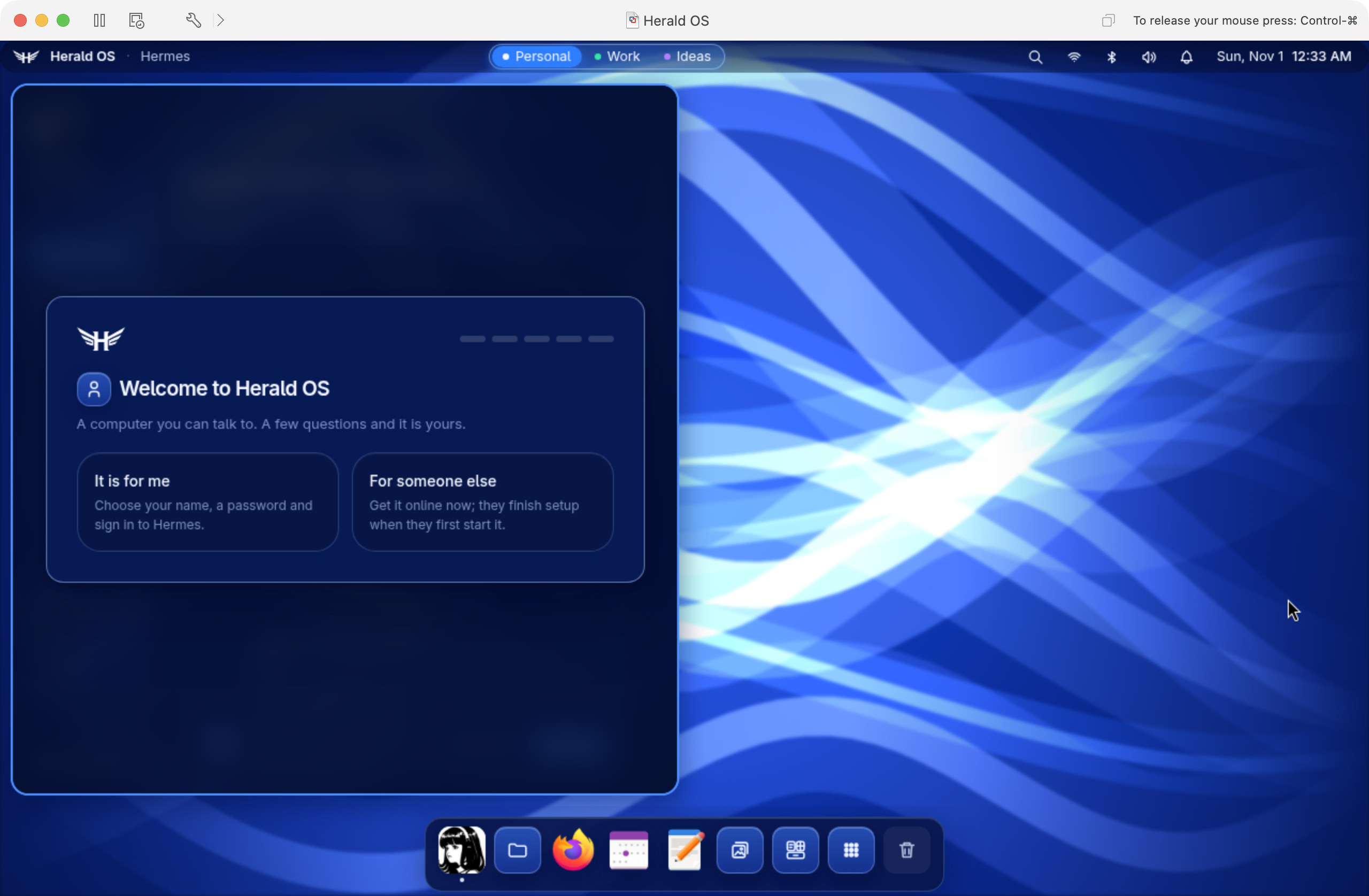
Herald OS puts Hermes Agent at the centre of the desktop. Its interface brings together conversations, files, memory, missions and scheduled work, with permission-controlled tools for acting on the machine. It is an independent project by Luke The Dev, using Nous Research’s Hermes Agent.
The Linux version uses Fedora underneath, the niri compositor to arrange windows, and Herald’s own shell for the desktop panels. Its bridge connects Hermes to system tools. There is also a macOS app, but I wanted the Linux environment in a VM. The Linux documentation explains how those pieces fit together.
It is still an alpha. That made a VM an easy choice: give it its own disk and a separate environment to experiment in.
What I used
This walkthrough uses the 0.1.0-alpha.4 aarch64 release image on an Apple Silicon Mac. I tested it with Fusion 13.5.1. Treat that as the version I ran, rather than a minimum-version or host-support claim.
| Setting | My configuration |
|---|---|
| Guest architecture | ARM64 / aarch64 |
| Virtual CPUs | 4 |
| Memory | 8 GB |
| Firmware | UEFI, Secure Boot disabled |
| Disk controller | NVMe |
| Network | NAT, vmxnet3 |
| Graphics | 3D acceleration enabled |
The release disk has a virtual capacity of approximately 41.5 GiB. Leave room on the Mac for the compressed download, the unpacked QCOW2, the converted VMDK and the applications installed during first boot.
The project’s documented Apple Silicon VM route uses Apple’s Virtualization framework through vfkit. The Fusion conversion here is the adaptation I tested. Use the aarch64 disk for this walkthrough; the x86_64 installer is for a different architecture.
First, grab the tools and helper scripts
On the Mac, install the conversion tools and a current Python using Homebrew:
brew install python qemu zstd
python3 --version
The helpers need Python 3.11 or later. They assume Homebrew is installed under /opt/homebrew and Fusion is in /Applications.
I have included the scripts used for the build:
Download the Fusion helper scripts
Unzip that archive into Downloads. It contains a herald-fusion-helpers folder with:
create_vm.py— verifies the release image, converts the disk and writes the Fusion configuration.serial_console.py— connects to a temporary local serial console.finish-setup.sh— applies the missing-library fix inside Linux and finishes Hermes setup.normal_boot.py— removes the temporary serial-console configuration and starts the completed VM.
There is a README in there too. Have a look through the scripts before running them; they are short enough to see what each one changes. The VM creation script refuses to overwrite an existing VM.
Download the release disk
Run these commands on the Mac. They deliberately use the release tested here:
mkdir -p "$HOME/Virtual Machines.localized/Herald OS Lab"
cd "$HOME/Virtual Machines.localized/Herald OS Lab"base=herald-os-0.1.0-alpha.4-aarch64.qcow2
release=https://github.com/iamlukethedev/Herald-OS/releases/download/v0.1.0-alpha.4
for file in "$base.zst.part0" "$base.zst.part1" "$base.zst.sha256"; do
  curl -fL --retry 3 -C - "$release/$file" -o "$file"
done
cat "$base.zst.part0" "$base.zst.part1" > "$base.zst"
shasum -a 256 -c "$base.zst.sha256"
zstd -d "$base.zst" -o "$base"
The compressed disk comes in two parts. Join them in order, check the checksum, then unpack it. If you already have an unpacked disk, do not decompress over it.
Convert it and create the Fusion VM
Back on the Mac, switch to the extracted helper directory:
cd "$HOME/Downloads/herald-fusion-helpers"python3 create_vm.py
  "$HOME/Virtual Machines.localized/Herald OS Lab"
  --start --serial-console
The script checks the archive checksum, confirms the QCOW2 matches the archive’s contents, and runs qemu-img check. It then converts the disk into a sparse VMDK and compares the two disks before starting Fusion.
The conversion itself uses:
qemu-img convert -f qcow2 -O vmdk \
  -o subformat=monolithicSparse source.qcow2 destination.vmdk
That line explains the conversion; the helper supplies the actual filenames and builds the .vmwarevm bundle around it.
The --serial-console option gives us a way into Linux while the first desktop is starting. It uses a local socket on the Mac and we remove it once setup is complete.
The bit that caught me: libatomic
The first boot downloads Hermes and its dependencies. In my clean test, that got as far as Node and then failed with:
error while loading shared libraries: libatomic.so.1:
cannot open shared object file: No such file or directory
Node needs libatomic. The installer tried to install it with dnf, but this Herald image uses a read-only bootc system. That ordinary package-install attempt failed too.
The repair I used downloads Fedora’s ARM64 RPM, verifies its signature, and extracts the library into a persistent directory under /var/lib. An entry under /etc/ld.so.conf.d tells the loader where to find it. This avoids changing the bootc image or relying on a temporary overlay that disappears at reboot.
This is a local workaround for the release I tested. If a later image includes the library, this particular repair should no longer be needed.
Finish setup through the serial console
First, make the helper available to the VM. In a Mac terminal, from the helper directory:
python3 -m http.server 8766 \
  --bind 172.16.206.1 \
  --directory "$HOME/Downloads/herald-fusion-helpers"
Check that address for your Fusion network. 172.16.206.1 is the Mac-side address of my Fusion NAT network. Yours may differ. Use ifconfig on the Mac to find the bridge address on the same subnet as the VM; the VM’s serial login banner shows its own address. Replace the host address in both the server command above and the download command below.
This server only needs to run during setup. Binding it to the Fusion host address keeps the download on that interface.
In a second Mac terminal:
cd "$HOME/Downloads/herald-fusion-helpers"
python3 serial_console.py
At fedora login:, enter hermes. The default account in this release initially has an empty password. Let the automatic first-boot attempt finish before applying the repair; you can check its state with:
systemctl show herald-os-firstboot.service -p ActiveState
If it is still activating, give it more time. To inspect its recent output without leaving the shell, run journalctl -u herald-os-firstboot.service -n 20 --no-pager.
Now run the following inside the VM, at its Linux shell prompt:
curl -fsS http://172.16.206.1:8766/finish-setup.sh \
  -o /tmp/finish-herald-setup.shbash /tmp/finish-herald-setup.sh
The helper verifies the Fedora RPM, installs the library, reruns Hermes setup, enables Herald’s bridge and restarts the graphical session. It prints the Hermes checkout it used, which is useful when comparing results later.
The library registration at the heart of the fix looks like this:
echo /var/lib/herald-local/lib | \
  sudo tee /etc/ld.so.conf.d/herald-local.conf
sudo ldconfig
The complete script in the download also handles fetching, verifying and extracting the package. Those steps need to happen before registering the directory.
Prove it is running
A desktop appearing is a good start. I also wanted to see the library resolve and the Hermes backend start successfully.
Run these inside the VM:
ldconfig -p | grep libatomic
~/.local/bin/hermes --version
grep HERMES_BACKEND_READY \
  ~/.local/state/herald-os/shell.log | tail -1
You should see libatomic.so.1 resolve to /var/lib/herald-local/lib, a Hermes version, and a HERMES_BACKEND_READY message. The port number is allocated when Hermes starts, so it can differ from the screenshot.
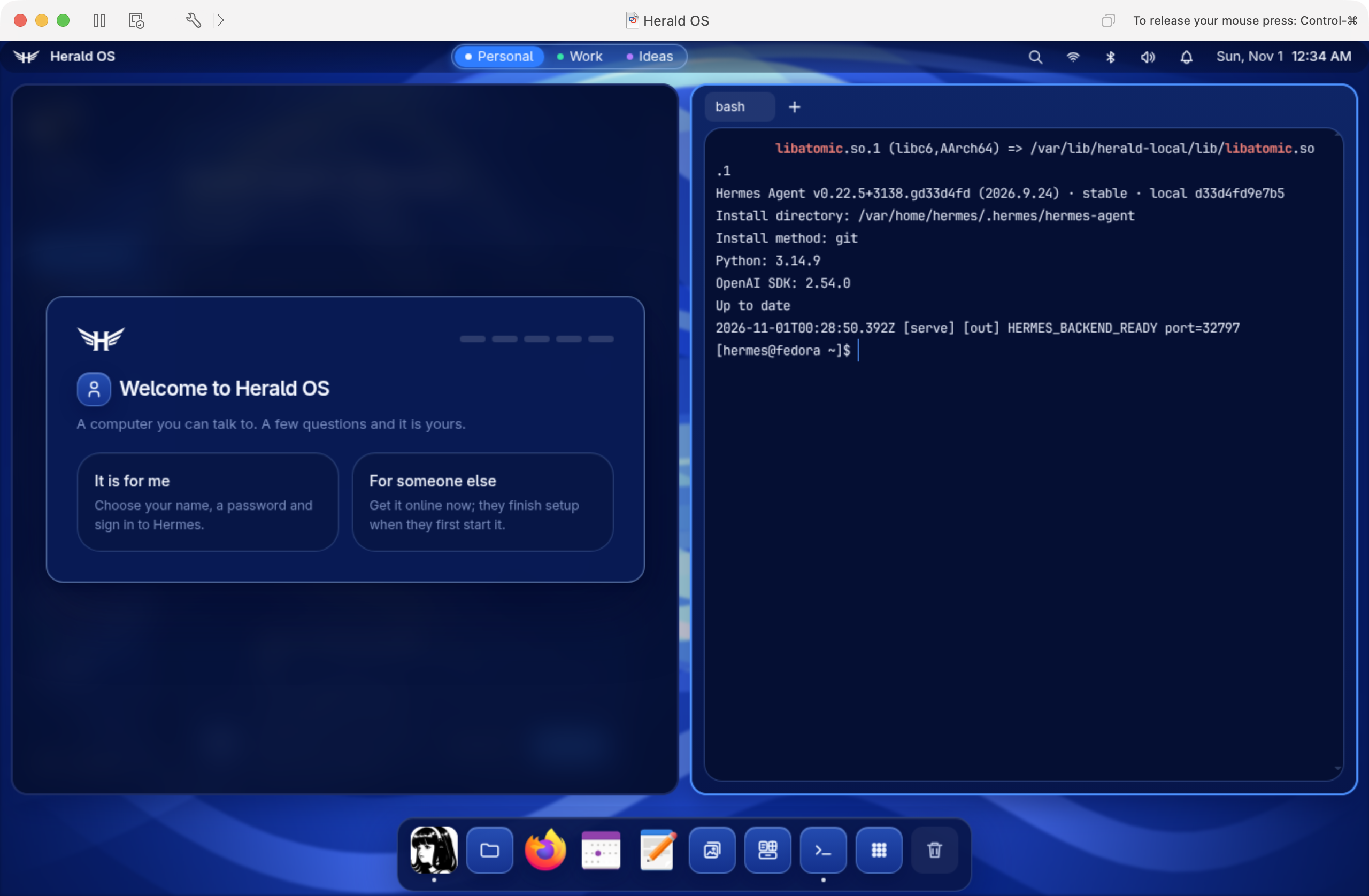
My clean run installed Hermes v0.22.5. There is one detail to keep in mind here: pinning the OS disk does not pin everything the first-boot installer downloads. Its Hermes checkout can move upstream.
If the desktop is blank after the failed installation, restart the graphical session after completing the repair:
sudo systemctl restart greetd
sudo chvt 1
The helper does this already. It ends your current graphical session, so use it during this initial setup before you have work open in the VM.
Give it a proper cold boot
Inside the VM:
sudo systemctl poweroff
Once Fusion shows the VM powered off, run this on the Mac:
cd "$HOME/Downloads/herald-fusion-helpers"
python3 normal_boot.py \
  "$HOME/Virtual Machines.localized/Herald OS Lab"
That switches the temporary serial console back to a log file and boots the VM normally. Stop the temporary HTTP server with Ctrl-C in its Mac terminal. You can close the serial-console client as well.
This is the check that mattered to me: after powering it off and starting it again, the welcome screen returned and Hermes started. The repair survived the reboot.
Add VMware Tools
One more thing to check before settling in: VMware Tools. Fusion initially reported them as installed, but checking inside this release of Herald showed that the packages and service were missing. The guest checks were the useful ones here.
Herald uses an immutable Fedora image, so I installed Fedora’s open-vm-tools packages with rpm-ostree. Run these commands inside the VM, in its terminal, and let the installation finish before rebooting:
sudo rpm-ostree install open-vm-tools open-vm-tools-desktop
sudo systemctl reboot
After the desktop returns, open a terminal and check:
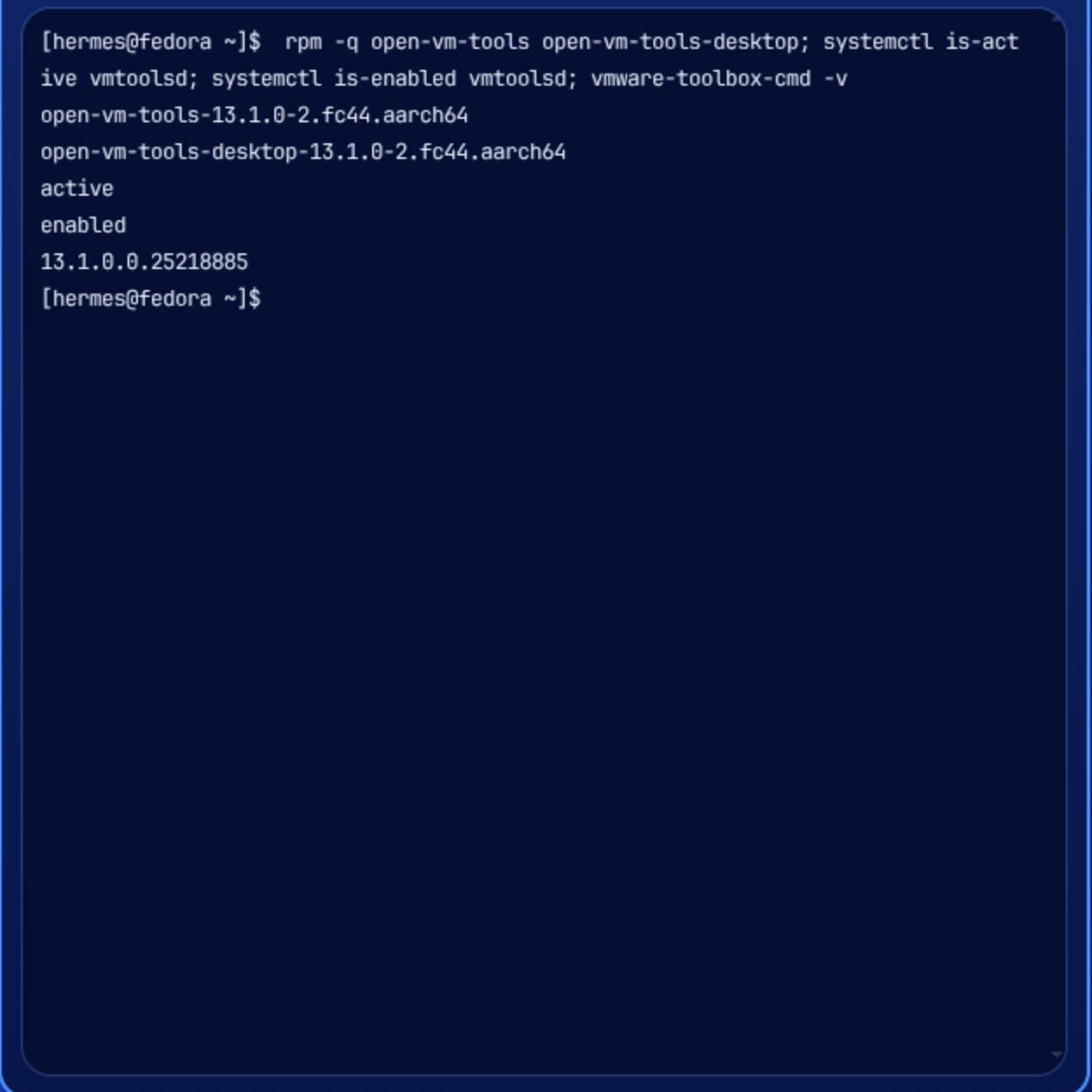
rpm -q open-vm-tools open-vm-tools-desktop
systemctl is-active vmtoolsd
systemctl is-enabled vmtoolsd
vmware-toolbox-cmd -v
My VM reported both packages as 13.1.0-2.fc44.aarch64, the vmtoolsd service as active and enabled, and the toolbox version as 13.1.0.0.25218885. This confirmed the tools started automatically after reboot.
I installed the desktop package too. Clipboard sharing, drag and drop, and automatic resizing have not been verified in Herald’s niri/Wayland session; these service checks establish that the system tools are running.
There is an update detail to keep with these instructions: installing the packages creates a local package layer. While that layer is present, use sudo rpm-ostree upgrade, followed by a reboot, for OS updates. bootc upgrade does not support those local package modifications. The bootc documentation explains the interaction, and the rpm-ostree handbook covers package layering and upgrades.
Now make it yours
Click It is for me, choose your name, set a VM password and configure a model provider. The Herald setup documentation covers signing in and selecting a provider.
Once you have signed in, a useful first request would be:
Show me this machine's CPU, memory and disk usage.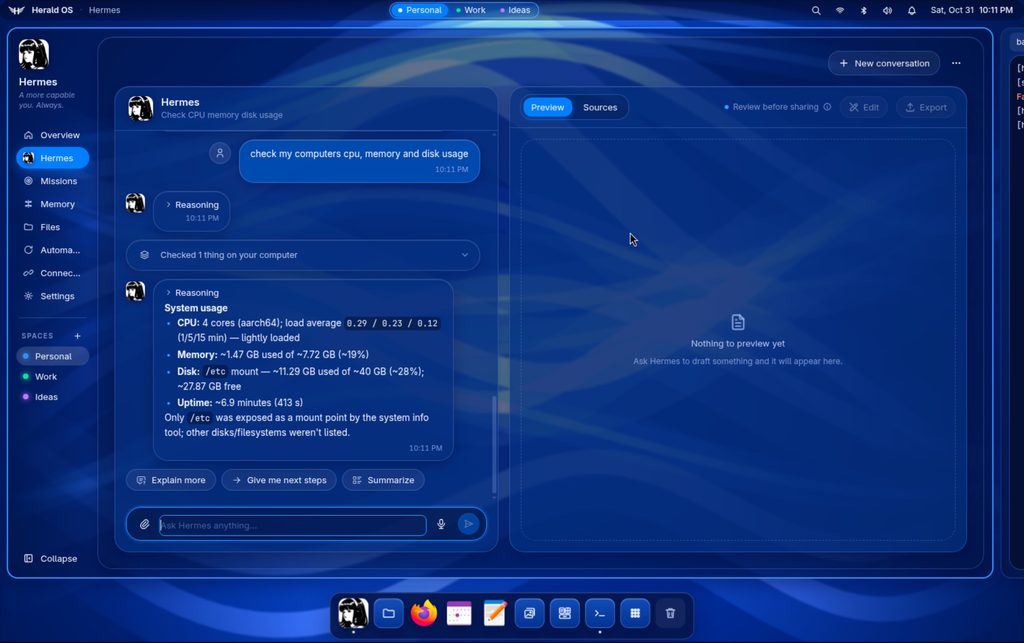
I verified the VM, desktop and Hermes backend for this post. I left provider authentication to the personal setup stage, so that example is your next test, rather than a conversation I have already run.
What interests me now is trying the workflow: give an agent an environment of its own, see which everyday tasks become easier, and keep an eye on what it asks permission to change. The VM is ready. Time to have a play.