
Looking for a piece of powershell code to do something, look no further, there are some great examples here… http://poshcode.org/
Author Archives: Alan

ESXi Free from 28 July
Today, VMware is taking another step towards making virtualisation ubiquitous by announcing that VMware ESXi will be available for download at no cost as of the week of July 28, 2008.
VMware has always believed that virtualisation needs to be ubiquitous. Since 2001, VMware has provided the industry’s most popular and reliable hypervisor used by more than 100,000 customers. During this evolution, partners like you have been critical in educating and delivering virtualisation to customers of all sizes. In December 2007, VMware announced significant improvements with ESXi – its third-generation, stand-alone hypervisor. With its smaller footprint and OS-independence, ESXi ensures even higher levels of security and reliability while making virtualisation easier than ever to deploy.
More info can be found here http://www.chriswolf.com/?p=175
Give the users a console again
Granting Console Access and Power On/Off functions to your Users
Sometimes a user will complain that they need console access to there servers or permission to turn on/off or reset there machines if there is a problem, as the servers become virtualised this can be achieved in a number of ways, I have documented a couple of these ways below…
- Apply the correct permissions for the user you wish to access the virtual machine limiting them to there required security permissions.
If you’re using VirtualCenter, you can use roles and groups to assign permission to users such that they would only see the VM’s that they have permission to and could have various levels of rights over those VM’s. This is covered in depth starting at page 261 here – http://www.vmware.com/pdf/vi3_35/esx_3/r35/vi3_35_25_admin_guide.pdf.
You could do something similar with ESX 3.0.x but that was removed with ESX 3.5.
With ESX 3.5 you can create individual users, but you can’t grant permissions to specific VM’s without VirtualCenter.
- Once you have completed the permissions side of things start your favourite web browser and browse to your VC or ESX server web interface by using https://yourservername/ui

- Log into the web interface using your own Administrator account details, we will use this to create the link which you will be providing to the end user.
-
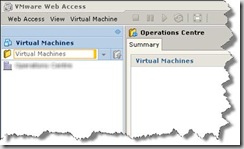
Use the navigation bar (blue area) on the left hand side of the screen to navigate to and click on the Virtual Machine you wish to give access to

-
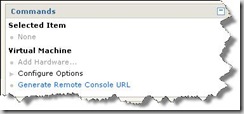
Click the “Generate Remote Console URL” on the right hand side of the screen

-
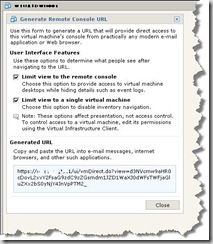
Use this form to customise what you would like the user to see.

- Once completed you can copy the link from the light blue area and send this to the user.
There is also a dedicated client for accessing machines on the VC/ESX servers which also works very well, this can be downloaded from the following area: http://www.ntpro.nl/blog/archives/170-The-games-have-begun.html

Exchange/Sharepoint – Why go physical ?
Found an interesting article at this blog talking about Sharepoint and also Exchange 2007 running on VMware, after reading this why would you go physical ?
Free Citrix Monitoring
A new simple free product has been released which will monitor your Citrix farm and include some of the following features:
-detailed logging
-dashboard overview
-alert siren
-manual override for license server/datastore
-flexible configuration options
-maintenance mode for servers
-send email on alert
-specially designed for Citrix
Microsoft Office Visio 2007 Professional Add-In for Rack Server Virtualisation (Virtual Rack)
This free Microsoft download called the “Rack Server Virtualisation Add-in” provides the capability to pull the rack-server data either from an Excel spread sheet or from the user and render the Visio diagram.
With over 70% of server hardware being under-utilized, this very valuable tool can draw a clear picture of your hardware utilization. This tool auto-generates the diagram of your rack and provides clear server details from a linked Excel template. Analyse your racks and servers using WMI or get the utilization data over time using the Operations Manager connection. Microsoft Visio 2007 Add-In for Rack Server Virtualisation (Virtual Rack) uses various new features of Visio 2007 to display the details of servers, racks and colours present in the Data Centre. This add-in enables consolidation of physical servers by allowing many virtual servers to run concurrently on one physical server results in improvement of system utilization, reduction in number of physical servers, lowering costs, increasing flexibility etc.
The Visio 2007 Add-In provides users a virtualisation picture in addition to the existing picture of the rack based on some parameters to compare the power consumption and space saving before and after consolidation. Use the virtualisation button to see the before and after detailed diagram of your racks. See clearly where you have the opportunity to save on space and power.
Installing Hyper-V on Windows Server 2008, Server Core
There is a very nice step by step guide here….
http://blog.avanadeadvisor.com/blogs/waynea/archive/2008/07/05/11433.aspx
Time to dual boot the home PC and start playing I think 🙂
VMware Server 2.0 Release Candidate 1
This newest version offers the capabilities from before, plus an array of new features, increased performance and stability—including a broader range of guest operating system support, direct access to virtual machine consoles, an intuitive Web-based management interface, and increased memory for greater scalability. With over 3 million downloads worldwide, VMware Server continues to innovate to provide users with a superior introductory experience to virtualization—for free.
What’s New
* Volume Shadow Copy Service (VSS): Properly backup the state of the Windows virtual machines when using the snapshot feature to maintain data integrity of the applications running inside the virtual machine.
* Virtual Machine Communication Interface (VMCI): Support for fast and efficient communication between a virtual machine and the host operating system and between two or more virtual machines on the same host.
* Support for SCSI pass-through (generic) devices: Allows for SCSI devices such as tape backup devices to be connected to virtual machines.
* Expand disk capacity on the fly: Allows for adding new SCSI hard disks and controllers to a running virtual machine.
* Firefox 3 as a supported browser for the management interface.
Download it here
7 side effects of sloppy virtualization
ORLANDO — IT professionals may initially be awestruck by the promises of virtualization, but Gartner analysts warn that awe could turn into upset when organizations start to suffer from seven nasty side effects.
David Coyle, research vice president at Gartner, detailed the seven side effects at the research firm’s Infrastructure, Operations and Management Summit, which drew nearly 900 attendees. While virtualization promises to solve issues such as underutilization, high hardware costs and poor system availability, the benefits come only when the technology is applied with proper care and consistently monitored for change, Coyle explained.
Here are the reasons Gartner says virtualization is no IT cure-all:
1. Magnified failures. In the physical world, a server hardware failure typically would mean one server failed and backup servers would step in to prevent downtime. In the virtual world, depending on the number of virtual machines residing on a physical box, a hardware failure could impact multiple virtual servers and the applications they host.
“Failures will have a much larger impact, effecting multiple operating systems, multiple applications and those little tiny fires will turn into big fires fast,” Coyle said.
2. Degraded performance. Companies looking to ensure top performance of critical applications often dedicate server, network and storage resources for those applications, segmenting them from other traffic to ensure they get the resources they need. With virtualization, sharing resources that can be automatically allocated on demand is the goal in a dynamic environment. At any given time, performance of an application could degrade, perhaps not to a failure, but slower than desired.
3. Obsolete skills. IT might not realize the skill sets it has in-house won’t apply to a large virtualized production environment until they have it live. The skills needed to manage virtual environments should span all levels of support, including service desk operators who may be fielding calls regarding their virtual PCs. Companies will feel a bit of a talent shortage when moving toward more virtualized systems, and Coyle recommends starting the training now.
“Virtualized environments require enhanced skill sets, and virtual training across many disciplines,” he said.
4. Complex root cause analysis. Virtual machines move — that is the part of their appeal. But as Coyle pointed out, it is also a potential issue when managing problems. Server problems in the past could be limited to one box, but now the problem can move with the virtual machine and lull IT staff into a false sense of security.
“Is the problem fixed or did you just lose it? You can’t tell in a virtual environment,” Coyle said. “Are you just transferring the problem around from virtual server to virtual server?”
5. No standardization. Tools and processes used to address the physical environment can’t be directly applied to the virtual world, so many IT shops will have to think about standardizing how they address issues in the virtual environment.
“Mature tools and processes must be revamped,” Coyle said.
6. Virtual machine sprawl. The most documented side effect to date, virtual server sprawl results from the combination of ease of deployment and lack of life-cycle management of virtual machines. The issue could cause consolidation efforts to go awry when more virtual machines crop up than there are server administrators to manage them.
“The virtualized environment is in constant flux,” he said.
7. May be habit forming. Once IT organizations start to use virtualization, they can’t stop themselves, Coyle said. He offered tips to help curb the damage done from giving into a virtual addition.
“Start small. Map dependencies. Create strong change processes. Update runbooks. Invest in capacity management tools. And test, test, test,” he said.
Original : Network World
More Powershell
I have now updated my first powershell script, this enables you to open a pre-configured spreadsheet with graphs and fill in the cells needed to populate the graphs and produce a nice 2 minute report on the state of the infrastructure, this is currently customised to my particular clusters but can be easily modified…
For a copy of the spreadsheet drop me a mail or a comment on this post.
Get-VIServer yourservername
$Excel = New-Object -Com Excel.Application
$Excel.visible = $True
$Excel = $Excel.Workbooks.Open("C:\Resource.xls")
$Sheet = $Excel.WorkSheets.Item(2)$intRow = 11
$colItems = Get-Datastore | Select-Object -property "Name","FreeSpaceMB","CapacityMB" | Sort-Object Name
$totalcapacity = 0foreach ($objItem in $colItems)
{
$Sheet.Cells.Item($intRow,2) = $objItem.Name
$used = $objItem.CapacityMB – $objItem.FreeSpaceMB
$Sheet.Cells.Item($intRow,3) = $used
$totalcapacity = $totalcapacity + $objItem.CapacityMB$intRow = $intRow + 1
}
$Sheet = $Excel.WorkSheets.Item(1)
$Sheet.Cells.Item(5,4) = $totalcapacity$Sheet = $Excel.WorkSheets.Item(3)
$Sheet.Cells.Item(4,3) = "Done"
$Sheet = $Excel.WorkSheets.Item(1)$intRow = 17
foreach ($objItem in $colItems)
{
$Sheet.Cells.Item($intRow,2) = $objItem.Name
$Sheet.Cells.Item($intRow,3) = $objItem.CapacityMB$intRow = $intRow + 1
}
$totalmem = 0
$cpumhz = 0
$totalcpu = 0Get-VMHost | %{Get-View $_.ID} | %{
$esx = "" | select NumCpuCores, Hz, Memory
$esx.NumCpuCores = $_.Hardware.CpuInfo.NumCpuCores
$esx.Hz = $_.Hardware.CpuInfo.Hz
$esx.Memory = $_.Hardware.MemorySize
$totalmem = $totalmem + $esx.Memory
$cpumhz = $esx.numCpuCores * $esx.Hz
$totalcpu = $totalcpu + $cpumhz
}
$formatedmem = ($totalmem /1024) /1024
$formatedcpu = ($totalcpu /1000) /1000
$Sheet = $Excel.WorkSheets.Item(1)
$Sheet.Cells.Item(6,4) = $formatedmem
$Sheet = $Excel.WorkSheets.Item(3)
$Sheet.Cells.Item(5,3) = "Done"
$Sheet = $Excel.WorkSheets.Item(1)
$Sheet.Cells.Item(7,4) = $formatedcpu
$Sheet = $Excel.WorkSheets.Item(3)
$Sheet.Cells.Item(6,3) = "Done"$Sheet = $Excel.WorkSheets.Item(2)
$colItems = Get-Stat -Entity (Get-ResourcePool -Name "Live") -Stat cpu.usagemhz.average -MaxSamples 1 -Realtime
foreach ($objItem in $colItems)
{
$Sheet.Cells.Item(4,4) = $objItem.Value
}$Sheet = $Excel.WorkSheets.Item(3)
$Sheet.Cells.Item(7,3) = "Done"
$Sheet = $Excel.WorkSheets.Item(2)$colItems = Get-Stat -Entity (Get-ResourcePool -Name "Test") -Stat cpu.usagemhz.average -MaxSamples 1 -Realtime
foreach ($objItem in $colItems)
{
$Sheet.Cells.Item(5,4) = $objItem.Value
}
$Sheet = $Excel.WorkSheets.Item(3)
$Sheet.Cells.Item(8,3) = "Done"
$Sheet = $Excel.WorkSheets.Item(2)
$colItems = Get-Stat -Entity (Get-ResourcePool -Name "Live") -Stat mem.active.average -MaxSamples 1 -Realtime
foreach ($objItem in $colItems)
{
$promem = ($objItem.Value /1000)
$Sheet.Cells.Item(4,3) = $promem
}$Sheet = $Excel.WorkSheets.Item(3)
$Sheet.Cells.Item(9,3) = "Done"
$Sheet = $Excel.WorkSheets.Item(2)
$colItems = Get-Stat -Entity (Get-ResourcePool -Name "Test") -Stat mem.active.average -MaxSamples 1 -Realtime
foreach ($objItem in $colItems)
{
$nonpromem = ($objItem.Value /1000)
$Sheet.Cells.Item(5,3) = $nonpromem
}
$Sheet = $Excel.WorkSheets.Item(3)
$Sheet.Cells.Item(10,3) = "Done"
$Sheet.Cells.Item(13,3) = "Done"