As part of some investigation into virtualising Citrix servers I decided to evaluate the use of Windows 2003 32 bit Standard servers running as virtual machines on VMware ESX. The reasoning behind the use of virtual machines is to try and issue more Citrix sessions to a single server therefore reducing the amount of hardware, data center space, power consumption and heat generated by the multiple physical servers.
Moving to VMware should allow for multiple machines to run on a physical server, allowing for a higher user load by adding more smaller loaded servers to the physical server.
This obviously depends on how Citrix is used in your environment, as Citrix applications that are published to users who open the application and minimise it until they need the app, using there desktop applications most of the time will have much a lower utalisation impact than users who use full Citrix desktops.
It will also depend on the kind of applications that you are using and how CPU/Memory intensive these applications are.
Test Platform
In order to test this, and other environments, I have been using Citrix Edgesight for Load Testing. Edgesight for Load Testing allows me to develop “scripts” that simulate a user load. These scripts are made up of various user interactions, such as use of the Office products, and can then be replayed with various time parameters to simulate a real world load. Each script can be run in the context of a user session (separate users for each session) and so allowing us to get somewhere near generating a “real world” load.
The generated script is run against a specified server and the times taken to perform each action can be measured along with the built in Virtual Infrastructure performance statistics and graphs.
Physical Server (ESX Host) Specification
- DELL PowerEdge 2950 III
- 2 x Quad Core Intel Xeon X5450, 2X6MB Cache, 3.0GHz, 1333MHz FSB
- 32GB FB 667MHz Memory (8x4GB dual rank DIMMs)
- 2 x Intel PRO 1000VT Quad Port Gigabit Network Card, PCI-E
- Emulex LPe-12002-E, Dual-port 8Gbps Fibre Channel PCI-Express HBA card
- 2 x 73GB 15.000 rpm 3.5-inch SAS Hard Drives
- ESX 3.5 Update 1
Virtual Machine Specification
- 1 x vCPU (Using VMware process affinity to tie the VM to a specific CPU core)
4GB RAM
- 1 x 20GB Hard Disk Stored on SAN
- 1 x vNic (1GB)
Virtual Machine Software Specification
Windows 2003 R2 32 Bit Standard Edition SP1
Citrix Presentation Enterprise 4.0 Rollup pack PSE400W2K3R03 plus additional hotfixes
Office 2003 with latest Service Pack
Other Configuration
The Virtual machines, ESX Hosts and VMTools were configured specifically to adjust the virtual machines for best performance of Citrix using multiple best practice and configuration documents.
Test Script
The test script was made up of 3 core sections that invoked the use of the following software:
- Outlook 2003
- Word 2003
- Excel 2003
For each of the scripts the programs would be opened, used (either opening email or opening documents), and then left open and the next program opened. Once the Excel test had finished the test closed all of the Office applications and started again with Outlook. This was repeated until the allotted test time was completed and the user was then logged off.
Test Load
These tests were carried out with a number of users per virtual machine. The virtual machine was configured with 1 x vCPU to maximise the number of virtual machines that could be hosted on each host, as the host has 8 cores each core could host a virtual machine.
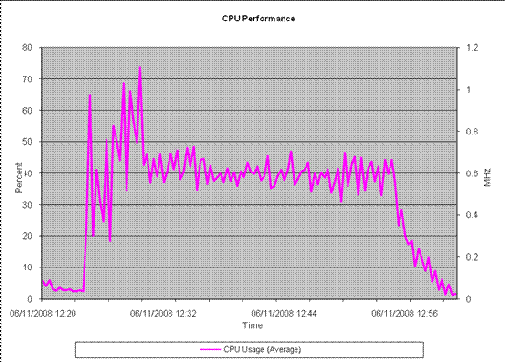
Test 1 – 10 Users
|
Test
|
Time Period
|
Users Logged On
|
Details
|
|
1
|
20 minutes
|
10
|
· Logged 10 users on and working over 5 minutes
· Kept 10 users logged on and working for 15 minutes
· Logged 5 users off over a 5 minute period
|
Test 2 – 20 Users
|
Test
|
Time Period
|
Users Logged On
|
Details
|
|
2
|
25 minutes
|
20
|
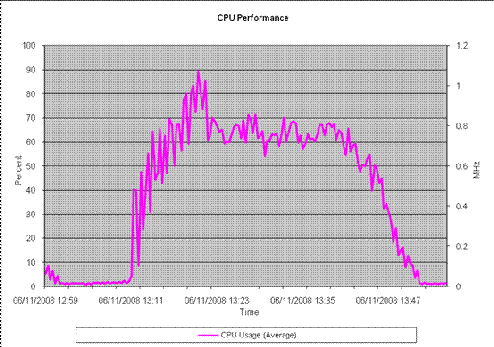
· Logged 10 users on and working over 5 minutes
· Logged another 10 users on and working over 5 minutes
· Kept 20 users logged on and working for 15 minutes
· Logged all 20 users off over a 5 minute period
|
Test 3 – 25 Users
|
Test
|
Time Period
|
Users Logged On
|
Details
|
|
3
|
33 minutes
|
25
|
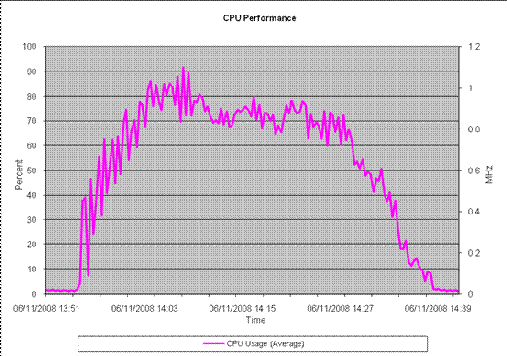
· Logged 10 users on and working over 5 minutes
· Logged another 10 users on and working over 5 minutes
· Logged another 5 users on and working over 3 minutes
· Kept 25 users logged on and working for 15 minutes
· Logged all 25 users off over a 5 minute period
|
Test 4 – 30 Users
|
Test
|
Time Period
|
Users Logged On
|
Details
|
|
4
|
35 minutes
|
30
|
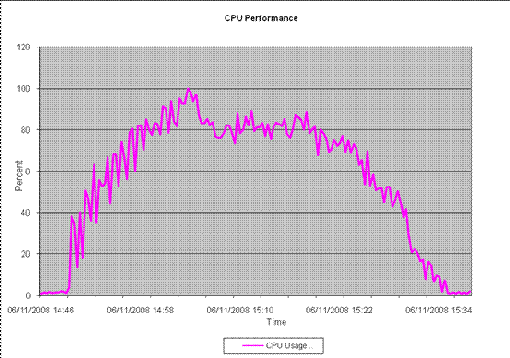
· Logged 10 users on and working over 5 minutes
· Logged another 10 users on and working over 5 minutes
· Logged another 10 users on and working over 5 minutes
· Kept 30 users logged on and working for 15 minutes
· Logged all 30 users off over a 5 minute period
|
Test 4 – 35 Users
|
Test
|
Time Period (Minutes)
|
Users Logged On
|
Details
|
|
5
|
38 minutes
|
35
|
· Logged 10 users on and working over 5 minutes
· Logged another 10 users on and working over 5 minutes
· Logged another 10 users on and working over 5 minutes
· Logged another 5 users on and working over 3 minutes
· Kept 35 users logged on and working for 15 minutes
· Logged all 35 users off over a 5 minute period
|
Results
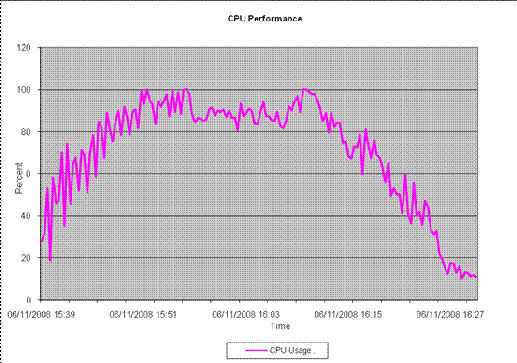
During the tests CPU/Memory/Disk and Network figures were monitored, as the users were added to the virtual machines it was clear the application set used for testing were CPU bound and although all other figures were consistently monitored these would not take as heavy an impact as CPU.
From the above graphs we can see where the users were logging into the virtual machines and where the sessions conducted there test patterns, after an initial spike in the login period the figures averaged out at the following:
- 10 Users – Averaged at 40% CPU Usage
- 20 Users – Averaged at 65% CPU Usage
- 25 Users – Averaged at 73% CPU Usage
- 30 Users – Averaged at 81% CPU Usage
- 35 Users – Averaged at 87% CPU Usage
Conclusion
Based on this testing and the environment we used, 25 users per single vCPU guest seems feasible (possibly a few more) but my opinion 30+ users is pushing sensible extended period CPU load due to resources needing to be made available for the tasks which will use the CPU for larger and longer periods of time which may impact the other running users of that particular machine.
If we extrapolate this out, it could mean 200+ (25 * 8) sessions on 8 guest machines across the 8 processor cores of the Dell 2950.
Please note that the current version of ESX at the time of writing this document is ESX 3.5 Update 3. As VMware continue to improve memory and CPU handling techniques it is feasible that further tests on this version may provide more sessions per virtual machine.
Unfortunately I was unable to get anywhere near the numbers that VMware achieved in there scalability document.
If you have any experience in virtualising Citrix or if you have any further tweaking or tuning tips please leave a comment below.
Part 2: Citrix on VMware, 1vCPU or 2vCPU ?